Fabrication Workshop

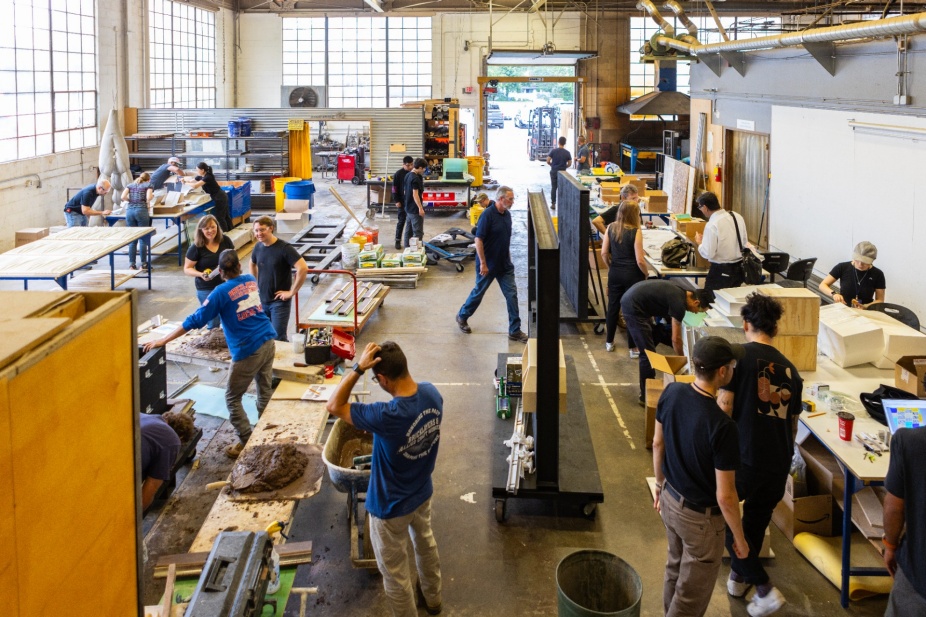
Our fabrication workshop is a teaching, research, and experimentation laboratory.
The University at Buffalo School of Architecture and Planning Fabrication Workshop is a teaching, research and experimentation laboratory. Our facilities include high bay assembly spaces, woodshop, metalshop, and digital fabrication labs featuring lasercutters, 3d printers, a CNC plasma Cutter, 3-axis CNC routers, a 5-axis waterjet cutter and a robotic arm.
Our primary goal is to maintain a safe and supportive environment for students, and to support them in their academic and personal making pursuits.
Below current students will find information about our open lab hours and the material store, as well as tutorials and forms to submit digital fabrication requests.
Please contact us at ap-shop@buffalo.edu or drop in with any questions.
Our Spaces
The Shop —
Analog Workspace and Assembly Hall, Parker 02
‘The Shop’ is a 6,000sf high bay space which primarily supports students and provides course support. It is professionally staffed, and supported by a team of trained student assistants. Here you will find our help desk, a store to purchase materials, digital fabrication job pick-up, the student facing digital fabrication lab, the woodshop, metalshop, and large assembly space.
The Fabrication Factory —
Advanced Digital Fabrication & Research Space, Parker 56
Our Digital Fabrication Factory is primarily used by graduate students and faculty for advanced research and scholarship. This 5,000 sf lab is home to the Kuka Robotic Arm, a 5’ x 8’ 3 axis CNC milling machine, and a 5-axis waterjet.
Material Store —
Parker 02
Located within the Fabrication Workshop, the material store is an easily accessible place for students to purchase supplies on Campus.
Stocked with a variety of papers and cardboards, wood, foam, and plastics for lasercutting, CNC milling, and model making, we attempt to have most items students need to complete their work.
Students purchase materials with Campus Cash using their UB ID card, making all transactions easy and tax-free.
Through our relationships with local suppliers the Material Store is able to source high-quality material and pass the savings of bulk pricing directly to students. We also sell a variety of sizes to help limit waste.
Students are not required to purchase supplies from the material store and are more than welcome to purchase material from external suppliers.


Julia Hunt, clinical assistant professor in the Department of Architecture and director of digital fabrication.


The Architectural Ceramic Assemblies Workshop (ACAW), a yearly event co-hosted at UB with Boston Valley Terra Cotta and Carnegie Mellon University, takes place in Parker Hall.
Digital Fabrication
Our Machines:
Universal Laser Cutters (3) VLS 6.60/75 - Bed Size 32” x 18”
Location : Digital Fabrication Lab, Parker 02
NOTE : by request only, please contact us to use this machine
Function: 2 dimension cutting, etching, and engraving a variety of non-ferrous materials.
Quick Links :
SUBMIT A LASERCUT / PURCHASE MATERIALS
FIRST TIME SET-UP AND DRIVER INSTALLATION
FILE PREPARATION TIPS AND TRICKS
DOWNLOAD UNIVERSAL LASER PLOT STYLE FILE
Our Process:
Lasercutting is available as a service to students of the School of Architecture and Planning. Jobs are submitted online and are run by Fabrication Workshop staff. Finished jobs can be picked up outside of Parker 02.
- Jobs are processed first come first serve, no exceptions.
- Students are responsible for the accuracy of their files, as well as power and speed settings. No refunds will be issued for mistakes in file prep.
Although our students have priority, lasercutting is also available to UB students from other schools and external clients. Please contact ap-shop@buffalo.edu.
Cost:
$0.50 / minute + material for students
Campus Cash Only (no credit cards, cash or other payment methods accepted)
File Preparation:
- Assure that your file for lasercutting contains only two dimensional information. It is recommended that you separate your 3d design file from your lasercutting file.
- Lasercut files are cut at 1:1 scale, the 6.60/75 laser beds are 32” x 18”, landscape format. Your cuts must fit on this bed. Please check our material sizes (add link), they vary.
- The cleaner your cut file is, the cleaner the results will be. Take the time to set up your work, it will save you time and money.
- Avoid sending duplicate lines (these will cut twice, increasing run time (=$) and burn marks). In Autocad, run the command OVERKILL to remove duplicates. In Rhino, SelDup and delete.Make2D eliminates non-duplicate overlapping lines.
- Join line segments into polylines whenever possible. This increases the speed and efficiency of your cut. If possible, choose to share edges (just remember to delete the duplicate)
- For Rhino, Rebuild curves to have minimum necessary points to represent the shape. Shapes with high point counts take longer to run.
Materials, Powers and Speeds:
PLEASE NOTE: Using the laser cutter is a trial and error process. These settings for the materials are to be used as general guidelines for using the laser cutter. Settings can differ substantially between cut jobs depending on material composition and drawing characteristics. (see FAQs) All backing material must be removed, from the “cut side” of the material, by the user PRIOR to dropping it off at the shop for processing.
NOTE: The Fabrication Workshop reserves the right to reject any material or job request that does not meet the necessary standards for safe and efficient use.
If your material is NOT listed, please contact the Fabrication Workshop prior to use. Specific materials that are NOT accepted include: metal, polycarbonate, Lexan, glass, foam, PVC, HDPE, corrugated cardboard and PETG.
Layers and Lineweights:
- Place your cut, score, and etch elements on different layers. Assign these layers one of the ‘index colors’. Autocad & Rhino: named colors:black, red, green, yellow, blue, magenta, cyan, orange
- The layers given these colors will cut in this order (black, red, green, yellow… and so on)
- Etching and scoring should always be before cut elements
- Inside cuts should be run before outside cuts
- All Layers and Objects must have no lineweights. In Autocad, set everything to a lineweight of 0.0. In Rhino, set everything to Hairline.
Etching and Scoring:
Always use 100 speed for every material. The amount of power depends on the depth of cut desired. Running a test is recommended, there are also visual reference guides available in the shop.
Submitting a Lasercut:
- If you are submitting for the first time from a lab computer or your own computer, you must first install the lasercutter drivers and plot styles. Follow the information provided here:
- Next, follow this tutorial to set up your ‘print’, assure the scale is correct, and set your power and speeds for each layer. See Materials, Powers and Speeds section for more information (ADD LINK FOR AUTOCAD, LINK FOR RHINO)
- Save the file on your computer. Next, submit your lasercut to the shop and purchase materials if required using this link: LASERCUT FORM and follow the instructions provided.
FAQs:
Q: I got an email saying my file is ‘rasterized’. What does this mean and how do I fix it?
A: The lasercutter runs vector files most efficiently. It cuts these by running the laser along the path of the intended vector linework. It can also process raster files which it processes like a standard printer moving back and forth horizontally in small increments. Rasterizing a vector file can increase the runtime (and therefore cost) significantly and will not cut through as intended. Shop staff check for rasterization and notify the students. If you did not mean to send raster elements; First, check that your file does not have any lineweight information. Select everything, make sure that your lineweights are set to 0.0 (AutoCAD) or Hairline (Rhino). Next, check if you have any hatches, such as brick patterns. If so, EXPLODE them. Text and solid hatches are also contributors to rasterization - consider using a vector font such as txt.shp in Autocad or similar. Watch a tutorial here.
Q: What can I do to make my lasercuts come out faster?
A: Jobs are processed in the order received, we have a live online tracker here (INSERT LINK) to help you plan. Things you can do is check your file in the UCP software (LINK TO UCP CHECK). Also, assure that you have enough campus cash in your account to cover materials and machine times. Failure to do either will result in your job being put on hold until the issue(s) are resolved.
Lasercutting Tutorials
Our Machines:
Filament Printers:
Prusa MK3 (6) : Build Volume 8” x 8” x 8”H
Prusa Córę One (1) : Build Volume 9” x 9” x 10”H
Prusa XL (2) : Build Volume : 14” x 14” x 14”H
Available Materials : PLA - matte white, grey or black. PETG - clear
Note : the Prusa XL can do two color printing
Resin Printers:
Formlabs Form 4 (1) : Build Volume 7.5” x 4.5” x 8”H
Formlabs Form 2 (4) : Build Volume 5.5” x 5.5” x 6.5”H
AnyCubic Photon Mono X 6K (2) : Build Volume 7.8”x4.8”x9.6”
AnyCubic Photon M3 Max (1) : Build Volume 11.7” x 6.4” x 11.8”
Available Materials: Resin - matte white, grey, black or clear.
Location: Digital Fabrication Lab, Parker 02
Function: Depositing layers of material (plastic or resin) for 3d prototypes and small models
Quick Links:
Our Process:
3D printing is available as a service to students of the School of Architecture and Planning. Jobs are submitted online and are run by Fabrication Workshop staff. Finished jobs can be picked up outside of Parker 02.
- Jobs are processed first come first serve, no exceptions.
- Students are responsible for the accuracy of their files. No refunds will be issued for mistakes in file prep.
Although our students have priority, 3d printing is also available to UB students from other schools and external clients. Please contact ap-shop@buffalo.edu.
Cost:
1 Color Filament Printing : $1.00 / cubic inch for students
2 Color (or PETG) Filament Printing : $1.50 / cubic inch for students
Resin Printing : $0.20 / milliliter for students
Campus Cash Only (no credit cards, cash or other payment methods accepted)
Preparing your Files:
Success in 3D printing requires a well prepared digital model. The model must be one single closed polysurface or mesh. This is often referred to as ‘watertight’ modeling. All surfaces must have a minimum thickness of 1/16” for a chance of success. These machines print at a 1:1 scale, all files must therefore be the actual dimensions requested.
Material Policy:
User provided material is not permitted. Faculty may request custom colors for their courses, they must contact Stephanie Cramer with the request.
Our house filaments are:
- Polymaker Polyterra PLA : Cotton White, Fossil Grey and Galaxy Black.
- Polymer PETG : clear
Our house resins are:
- FormLabs V4 : White Resin, Grey Resin and Black Resin.
- Anycubic Standard Resin : White, Grey, Black
FAQs:
Q: I got an email saying my file is too big or too small. How do I fix this?
A: First, check that your model is the correct scale by measuring something. Often, we receive 1:1 models instead of scaled models. Next, make sure your units are set to millimeters in Rhino (or your preferred model making software). Re-upload your Rhino model and .stl file.
Q: I got an email saying I need to join up my model, what do I do?
A: First, try boolean union. Remember, this command requires model elements to intersect, so you may need to move or stretch your model elements to make this work. Next, if you have Rhino 8, try the shrink-wrap command. If neither of these work, you will need to re-model part or all of your submission.
Q: What can I do to make my prints faster?
A: Decide you want to print early and design your digital model for printing. Work to understand how supports work and design to minimize them. Download a slicer software to check your file and troubleshoot any issues. Ensure that you have enough money in your Campus Cash Account.
Our Machines:
3 Axis CaMaster Router - 4’ x 8’ Bed
Location: Digital Fabrication Lab, Parker 02
3 Axis CaMaster Router - 5’ x 8’ Bed
Location: Fabrication Factory, Parker 56
Function: Two or three dimensional milling of a variety of materials. Supports a wide range and scale of projects from models, site models, prototypes, and full scale components.
Quick Links:
Our Process:
CNC Milling is available as a service to students of the School of Architecture and Planning. Jobs are submitted online and are run by Fabrication Workshop staff. Finished jobs can be picked up outside of Parker 02.
- Jobs are processed first come first serve regardless, no exceptions for review timing.
- Students are responsible for the accuracy of their files. No refunds will be issued for mistakes in file prep.
Although our students have priority, the CNCs are also available to UB students from other schools and external clients. Please contact ap-shop@buffalo.edu.
Cost:
$1.00 / minute + material for students
Campus Cash Only (no credit cards, cash or other payment methods accepted)
Acceptable Materials:
Foam, Plywood, Lumber, Plastics
Prohibited Materials:
MDF, Homasote, drywall, ferrous metals
File Preparation:
- To submit a CNC you must prepare and deliver a well crafted digital model. Assure that the model is the correct (real world) scale of your CNC, and that it contains no additional information.
- We program and process files using RhinoCAM. A native Rhino 7 file is preferred, but other formats may be processed, contact the shop staff.
- Our CNCs are 3 axis machines and can’t process ‘undercut geometry’. If you can not see something in the top view, neither can our CNC.
- We utilize a variety of bit sizes, all of which have some thickness (Generally ¼”-½” diameter for through cuts). We recommend at least 1” minimum between all pieces, and between your pieces and the outside of your material. Packing parts less than 1” apart is possible, contact the shop staff to discuss your project needs before submitting your file.
- Inside corners on the CNC will be rounded (the bits are round, Generally ¼”-½” diameter for through cuts). Consider this in your design, or plan to do some post processing work.
- Make sure 3D parts or surfaces are positioned at the correct height in your material. Parts should sit at least ⅛” below the top of the material for milling 3D parts/forms accurately, this accommodates for material surface variations.
Our Machine:
DCH2 CNC Plasma Table, 4’ x 4’ Cutting Area
Location: Metal Shop, Parker 02
Function: CNC cutting of Mild Steel, Stainless Steel, Aluminum, and various alloys such as brass and copper.
Quick Links:
Our Process:
Plasma Cutting is available as a service to students of the School of Architecture and Planning. Jobs are submitted online and are run by Fabrication Workshop staff. Finished jobs can be picked up outside of Parker 02.
- Jobs are processed first come first serve regardless, no exceptions for review timing
- Students are responsible for the accuracy of their files. No refunds will be issued for mistakes in file prep.
Although our students have priority, the waterjet is also available to UB students from other schools and external clients. Please contact ap-shop@buffalo.edu.
Cost:
$0.35 / minute
Campus Cash Only (no credit cards, cash or other payment methods accepted)
Acceptable Materials:
Mild steel, stainless steel, aluminium, some other metals.
NOTE: other than 22ga mild steel, the Fabrication Workshop does not sell sheet metal
File Preparation - Profile Cutting:
- To submit to the Plasma Cutter you must prepare a clean vector file - AutoCAD is recommended. Remove all duplicate linework, and join your lines together.
- Save this file as a 2007 .dxf.
- The cut path of the plasma cutter is approximately ⅛” wide. Please plan for at least ½” of space between your pieces and between your pieces and the edge of your material.
Monthly Calendar
Help
Fabrication Workshop - Full time staff

Executive Director of the Fabrication Workshop; Clinical Assistant Professor
Department of Architecture

Julia Hunt
Director of Digital Fabrication; Clinical Assistant Professor
